iPhone / iPad: a one-time $2.99 purchase on the U.S. App Store. Check the local listing for regional pricing. Mac, Windows, Android, and Linux versions are free.
App Store listing
iPhone / iPad
App ID
932747118
Developer
Shadow Launch Technology Limited
Find the right download for your device
Your device model helps determine compatibility; the distribution channel helps verify a file’s source. Check both separately. You can view the App Store listing for iPhone and iPad below. For other devices, choose the package for your platform and architecture. On Linux, choose the package format supported by your distribution.
iPhone / iPad
Open the App Store listing on your device and check the Compatibility section. Confirm the iOS or iPadOS requirements before installing. If the listing says your device isn’t compatible, check whether you can update its operating system.
Choose About This Mac from the Apple menu and check Chip or Processor. Apple silicon and Intel use different architectures. When reviewing release notes, check both the architecture and macOS requirements. A platform name in a filename doesn’t prove the file came from the developer.
Go to Settings › System › About and check System type. Programs marked x64 are built for the corresponding architecture. If your computer has an ARM processor, don’t rely on “64-bit” alone. Check the publisher and stated compatibility before running an installer.
Check your device manufacturer’s system and processor specifications, then compare them with the app architecture in the release notes, such as arm64. Seeing an installation screen only means the system recognizes the file format; it doesn’t verify the source.
First check your distribution, version, and architecture in the system information, then see whether the developer explicitly lists a compatible package format. .deb, .rpm, and AppImage are different distribution formats. A file extension doesn’t verify its source or guarantee compatibility.
Read the full warning, then determine whether it concerns compatibility, permissions, or an unverified publisher. Stop the installation if you can’t verify the file’s source, and keep your system’s security settings in place. Devices managed by a workplace or school may have additional policies; contact the device administrator.
Device
Warning or issue
What to do
iPhone / iPad
The App Store says the device isn’t compatible, or the download won’t finish.
Return to the listing and check the system requirements. If your device meets them, check available storage, network connectivity, and your Media & Purchases sign-in status. A stalled download doesn’t necessarily mean the purchase failed.
Mac
The system says the developer can’t be verified or the app is damaged.
Close the dialog without changing your security settings. Check your computer’s architecture, the file’s publisher, and its distribution channel. If the release information doesn’t match the file you have, don’t try to open it again.
Windows
Microsoft Defender SmartScreen says “Windows protected your PC.”
Cancel the installation. Verify the publisher and download source first. If your device is managed by an organization, ask its administrator to check the warning and file source.
Android
The system asks you to allow apps from unknown sources.
Return to the page where you found the file and check its release information. If you can’t verify the source, don’t grant this permission to your browser or file manager.
Linux
The package manager reports an architecture mismatch, missing dependencies, or an unverified source.
Note the exact error and compare it with the installation instructions from the distribution and publisher. Don’t use force-install options to bypass source or dependency checks.
App Store availability and account region
This section applies to iPhone and iPad only. The country or region for your Apple ID determines which store Media & Purchases uses. Your device language, location, and system region don’t determine the store. Seeing a US App Store preview in a browser doesn’t mean your purchasing account can buy from that storefront.
If you can’t find the app in the mainland China storefront, first open the listing for app ID 932747118 and check whether it says the app isn’t available in your country or region, or whether search simply returned no results. The former depends on the current store’s availability; changing your search terms repeatedly won’t change your account’s storefront. If the listing appears, verify the developer and app ID as described below. Don’t choose an app based on its search ranking.
Check the purchasing account and region settings
Open Settings, tap your Apple ID at the top, then go to Media & Purchases. Check which account is signed in there; it may differ from the account you use for iCloud.
Tap View Account, complete any requested verification, then open Country/Region. To view available change options, tap Change Country or Region on the same page.
Before submitting, read the system prompts and check your account balance, active subscriptions, and payment details. The store may require you to use up your balance, wait for subscriptions to expire, or provide billing information for the destination region. Follow the requirements shown for your account.
Three checks to verify the App Store listing
Check the developer, icon, and app ID on the same App Store listing. The name can help you find the app, but it isn’t enough to verify it. After opening the listing from search, confirm all three details below before proceeding.
Developer: Check the developer information near the app name on the listing and confirm it says Shadow Launch Technology Limited. Verify the developer field, not a company name mentioned in the app description.
Icon: Look for the rocket icon with a white background and blue-purple outline. The icon can help identify the app, but similar-looking search results aren’t enough. Check the developer and app ID as well.
App ID: Check the end of the listing’s share link and confirm it contains id932747118. The App Store storefront code may vary by language or region. Verify the app ID, not the storefront code at the beginning of the link.
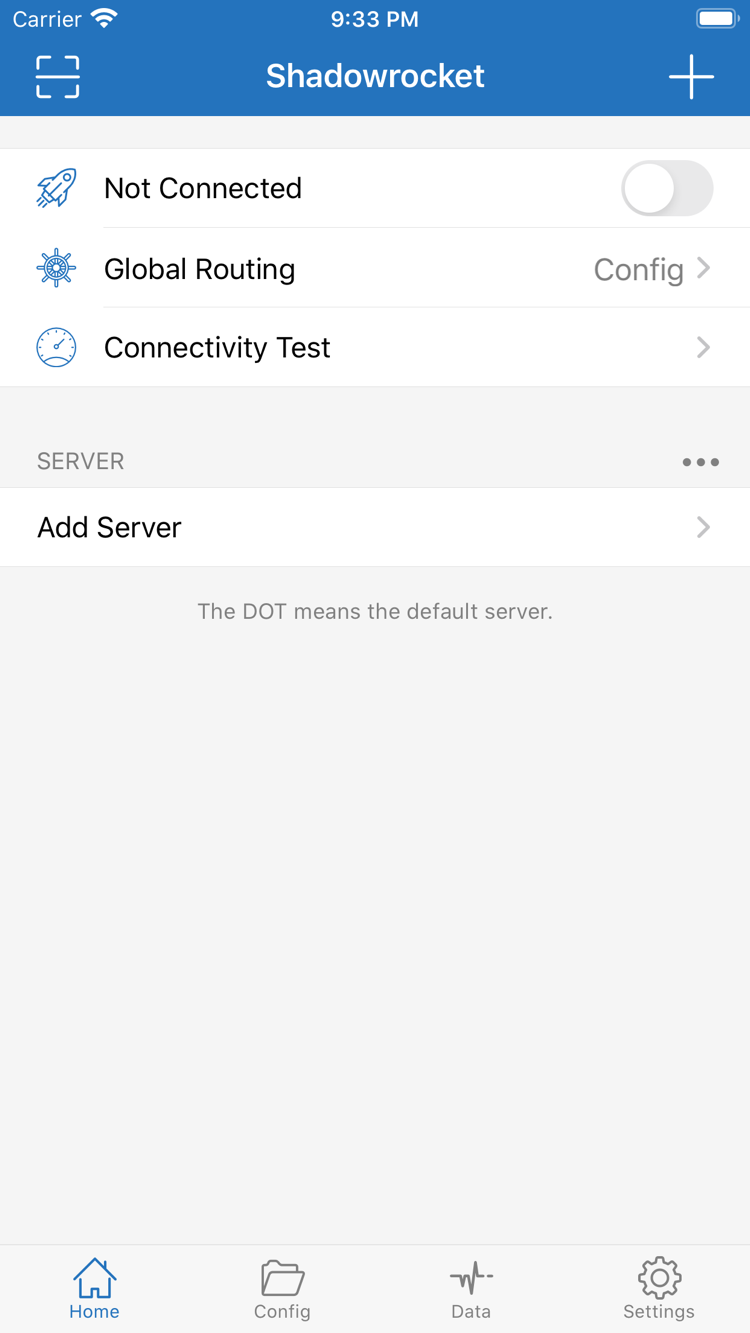
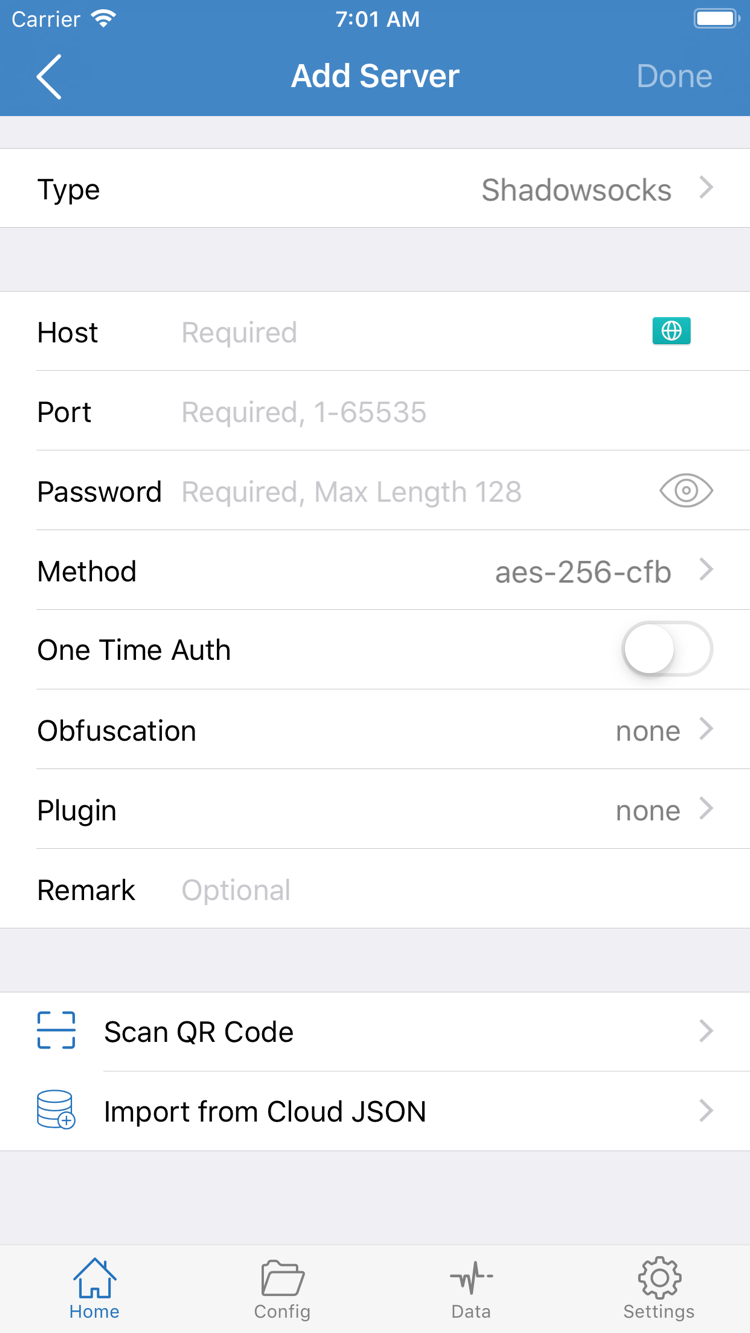
The App Store screenshots below can help you recognize interface labels after installation. They don’t verify the source of desktop or Android downloads. The interface may also vary with app and system settings; verify the app using the three details on its App Store listing.
Home: Check the connection status, Global Routing, and SERVER list.Add Server: Check the field names, or look for Scan QR Code and Import from Cloud JSON.
Switch devices and restore purchases
When switching to a new iPhone or iPad, check your original purchase history before deciding whether you need to buy the app again. Purchases are linked to the Apple ID used at the time. You can redownload the app with that account on compatible iPhone and iPad devices, as long as it’s available in the current storefront and the device meets the system requirements.
Open the App Store on your new device, tap your account picture, and make sure you’re signed in with the account you used for the original purchase. If you’re not sure which account that was, check the Media & Purchases account on your old device or look at your purchase receipt.
Open Purchased. If the wording differs on your device, go to the list of apps you’ve purchased from your account page and search for Shadowrocket. Tap the cloud download button next to the listing.
If the purchase doesn’t appear, first check whether you’re signed in to a different account or the app is hidden. If the purchase is listed but you can’t download it, check availability in your current storefront and device compatibility. A purchase button on one device doesn’t by itself mean your original purchase is no longer valid.
Redownloading the app and restoring connection settings are separate steps. Before switching devices, keep a copy of your own configuration and server details. After installing on the new device, follow the user guide to import your existing information. Get subscriptions from your service provider. If you have server details, use the field descriptions in Server Management. Don’t share links or screenshots containing access credentials when asking for help with an App Store issue.
App purchases and connection services
The price, currency, and purchase status for iPhone and iPad are determined by the current App Store storefront. Check the product ID first, then the button: if the store shows a download icon or Open, check your existing purchase history or installation status; if it shows a price, confirm your purchasing account and region before deciding whether to buy. Don’t use a webpage’s listed price to determine the legitimacy of an installation package from an unverified source.
For App Store billing, receipts, or purchase history, first check the relevant transaction in your App Store account. If the app opens normally but can’t connect after you import your information, check your existing server details, configuration, and Global Routing. You don’t need to buy the app again to test a connection. An App Store purchase doesn’t prove that a connection works, and a connection failure doesn’t mean the app purchase failed.
Download and installation FAQ
Can I use downloads from this page on a computer or Android phone?
Choose the package that matches your platform and architecture. Before installing, verify its distribution channel against the developer’s release information.
How can I tell whether my Mac has Apple silicon or an Intel processor?
Choose About This Mac from the Apple menu. If you see Chip and an Apple chip name, check for the Apple silicon version; if you see Processor and Intel, check for the Intel version. A matching architecture does not verify a download’s source.
What should I do if Windows says it protected my PC?
Close the warning and stop the installation. Check the file’s release source and publisher information. If you can’t verify them, keep your security settings in place and don’t run the file.
Why can’t I find Shadowrocket in the App Store?
First check the product page for app ID 932747118. Then check the store used by your purchasing account under Settings › Apple ID › Media & Purchases › View Account › Country/Region.
Do I have to pay again when I switch to a new iPhone or iPad?
Check your App Store purchase history using the account you originally bought it with. If the purchase is still available, the app can be redownloaded, and your device is compatible, use the download button in your purchase history. You don’t need to buy it again.
Can I install Shadowrocket on an iPad?
Open the App Store listing on your iPad and check the iPadOS requirements under Compatibility. If your device meets them, install from the listing or redownload it from the purchase history for the account you originally used.